It’s 3 AM, I’m ready to cram for an exam that is exactly five hours away, and the first thing I do isn’t crack open my textbook or the lecture slides. I don’t hop onto YouTube hoping to find that one video that magically covers everything I need. In classic 2026 fashion, I don’t head to ChatGPT either and ask it to explain everything to me like I’m 5. Instead, the first tool I turn to before all else is Google’s NotebookLM. The tool is Google’s AI research assistant, and what makes it stand out from most tools is that it’s designed to help you understand and work with your own content.
You feed it your lecture notes, slides, readings, YouTube resources, and essentially all the content you have related to what you’d like to study. NotebookLM then works exclusively within that material. You can ask it any questions, and you won’t have to worry about hallucinated facts pulled from the internet or generic explanations that miss the point of how your course actually teaches the topic. However, NotebookLM is only as useful as what you ask of it. Prompting remains a huge part of the quality of responses you get from any AI tool, and NotebookLM is certainly not an exception. I’ve been relying on it for studying since its Google Labs experiment days, and here are a few prompts that turn it into a full-fledged study system.
Getting the full picture before I start studying
Ctrl+F for your entire course

Even if you’re sitting in a class where you understand absolutely nothing the professor says, some part of it always sticks somewhere within your subconscious. When you come back to the concept on your own, you’ll feel a faint sense of familiarity that makes learning it the second time around significantly easier.
Before properly beginning a study session within NotebookLM, I use a prompt to replicate that same effect. I ask NotebookLM to generate a quick, skimmable rundown of each and every concept I need to know for my exam. I typically upload the course outline, all lecture slides, and sometimes, even the textbook. This is the exact prompt I use:
Based on the course outline, lecture slides, and textbook I’ve uploaded, give me a complete list of every key concept, theory, and term I need to know — organized by topic or module. Keep each explanation to one or two sentences max. I don’t need deep dives right now, just a high-level rundown I can skim to see everything at a glance.
Now, the goal here isn’t to memorize the entire output it gives and call it a day. Instead, it’s just to read it well enough and give my brain a map of what’s ahead. This way, when I dive deeper into each topic, nothing really catches me completely off guard.
The five essential questions prompt
The “prove you understand this” prompt
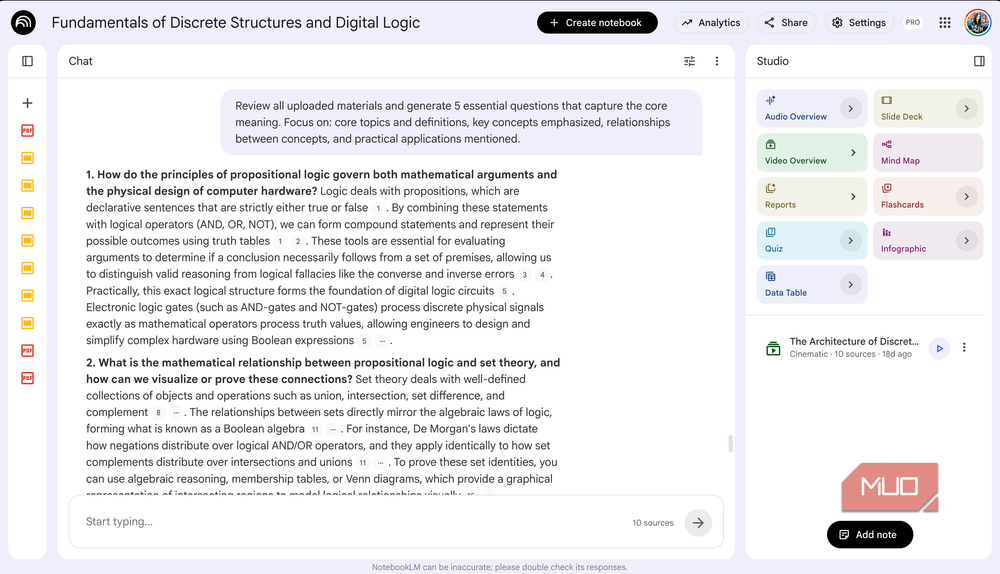
This is a prompt I’ve talked about before, but I wanted to highlight it again since I use a slightly modified version of it during my study sessions. The five essential question prompt went viral on X and Reddit, and it’s designed to flip the typical NotebookLM process: instead of you asking it questions, it asks you. The prompt nudges NotebookLM to analyze all your sources, identify the core ideas across the content you’ve uploaded, and then strip it down to five essential questions.
Given that the end point of a lot of study sessions is often an exam (and exams consist of, well, questions and only questions), this prompt is perfect for this use case since it mirrors how instructors structure knowledge. It’s also an excellent way to recognize exactly where your blind spots are. If you breeze through four questions but completely blank on the fifth, you’ve just identified what needs more attention than the rest. While I shared the generic version of the prompt in that article, here’s the adapted version I use for studying:
Review all uploaded materials and generate 5 essential questions that capture the core meaning. Focus on: core topics and definitions, key concepts emphasized, relationships between concepts, and practical applications mentioned.
The Feynman Technique, NotebookLM edition
Turn NotebookLM into your worst student
You might’ve noticed that it’s significantly harder to forget a concept you’ve taught someone. There’s a reason for that. When you’re explaining something to another person, you’re forced to organize the information in a way that actually makes sense to them, fill in the gaps you didn’t realize were there, and simplify things down to their core. You need to adapt your explanation to their understanding level, and after a person asks you a bunch of questions you hadn’t considered, you walk away understanding the material far better than before you started explaining it. This is essentially what the Feynman Technique is built on.

I hooked Obsidian to a local LLM and it beats NotebookLM at its own game
My notes now talk back and it’s terrifyingly useful.
The technique is built around the idea that teaching is one of the most effective ways to learn. The typical way to use the technique is to grab a friend (or a stuffed toy, just as effective and far less judgmental) and explain the concept to them as simply as you can. But the problem with friends is that they don’t always ask the right follow-up questions, and the problem with stuffed toys is that they don’t ask any. So, why not turn NotebookLM into that student instead?
NotebookLM has a feature that lets you set a custom persona for how it should act and respond to you. You can find this by opening an existing notebook or creating a new one and hitting the Configure Notebook setting in the Chat panel. Then, hit the Custom button under the Define your conversation style header. Now, you can describe exactly how you’d like the tool to behave and respond to you. Given that I want it to act as a student in this case, I use a prompt along the lines of:
Flip our roles. You are the student. I am the teacher. Topic I’m teaching you: [topic]. My level: [undergraduate/master’s/self-taught]. How hard I want you to be: [curious beginner / sharp student who asks follow-ups / skeptical professor who tests every claim].
And then you begin studying explaining! Depending on how you customize the prompt, NotebookLM will respond differently to your explanations. A curious beginner might ask you to clarify a term or give a simpler example. A sharp student will press you on the details and ask how two concepts connect. A skeptical professor will flat-out challenge your reasoning and force you to back up every claim. This is one of the most effective prompts I’ve used for my study sessions, and I can’t recommend it enough.
These prompts help you actually use your notes
I know a lot of students who try out NotebookLM for studying and quit using it in hours because they treat it like any other chatbot. They just ask question after question and walk away unimpressed. NotebookLM isn’t the kind of tool you just open and hope for the best. The value is always in how you direct it. If you’ve been sleeping on NotebookLM, or tried it once and gave up, give these prompts a shot before your next exam. Your 3 AM self will thank you, trust me.

